

The Sign Agreement wizard walks staff and the signing parent through a structured, in-person enrollment process. It verifies contact information, reviews each student, confirms pricing, optionally collects payment, and records the wet-ink signature.
Billing must be enabled on the agreement. The Sign Agreement button does not appear without it.
When to use it
Run Sign Agreement when:
-
A draft agreement is ready with all enrollments added
-
Billing has been enabled and the Billing tab reviewed
-
The parent is present to sign the printed agreement
Open the agreement and click Sign Agreement in the header.
Wizard steps overview
The wizard adapts based on your setup:
|
Step |
Always shown? |
Purpose |
|---|---|---|
|
Yes |
Verify/update payer name, address, phone, email |
|
Yes |
Walk through each student one at a time |
|
Billing enabled, not complimentary |
Read-only review of recurring charges |
|
Same as step 3 |
Read-only review of enrollment fees and proration |
|
Payroc integration installed & configured |
Save card on file |
|
Sign |
Always last |
Record signature, generate PDF, activate |
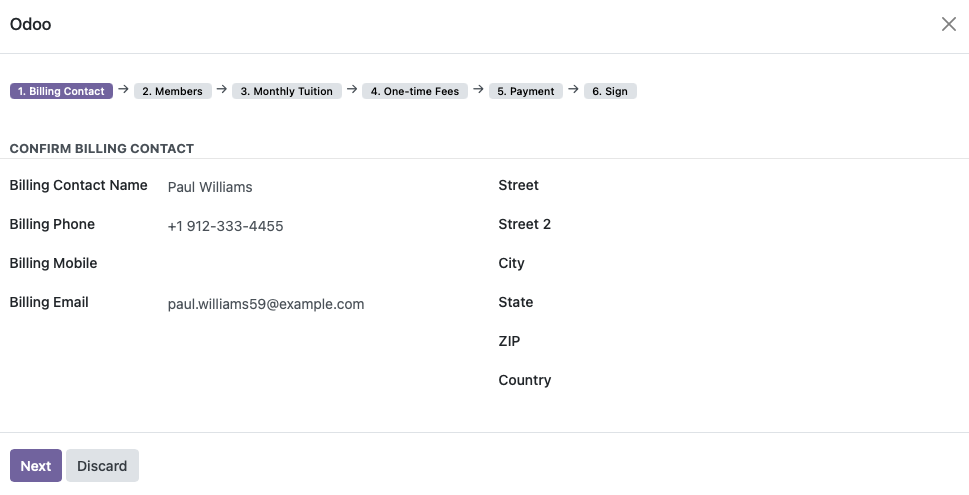
Step 1: Billing Contact
Confirm or update the billing contact's information:
-
Name
-
Street address, city, state, ZIP
-
Phone, mobile, email
Click Next to save changes to the contact record and continue.
Step 2: Members
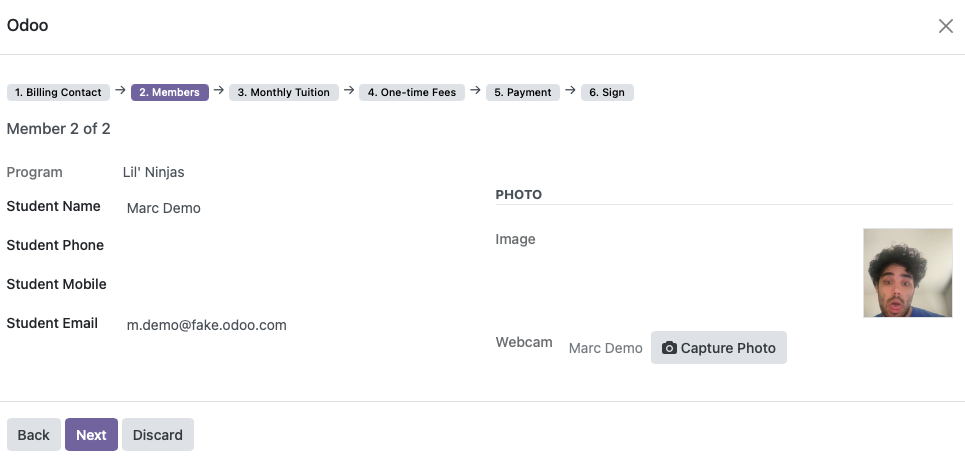
The wizard shows one enrollment at a time. For each student:
-
Review the student name and program
-
Update contact info (phone, email) if needed
-
Optionally capture a webcam photo of the student
-
Click Next to advance to the next student
A progress indicator shows which member you're on (e.g. "Member 2 of 3").
Tip: Photos are saved to the student's contact record and can be used for attendance systems or member IDs.
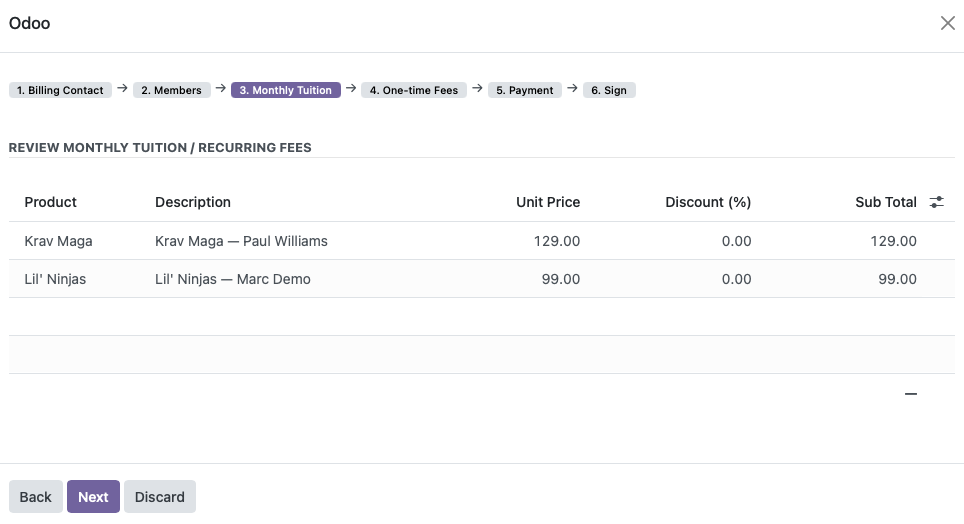
Step 3: Monthly Tuition (billing only)
Read-only table showing each enrollment's monthly tuition after discounts.
This step is for the parent to review and acknowledge recurring charges. To change amounts, go back to the agreement's Billing tab (while still in Draft billing) before signing.
Click Next to continue.
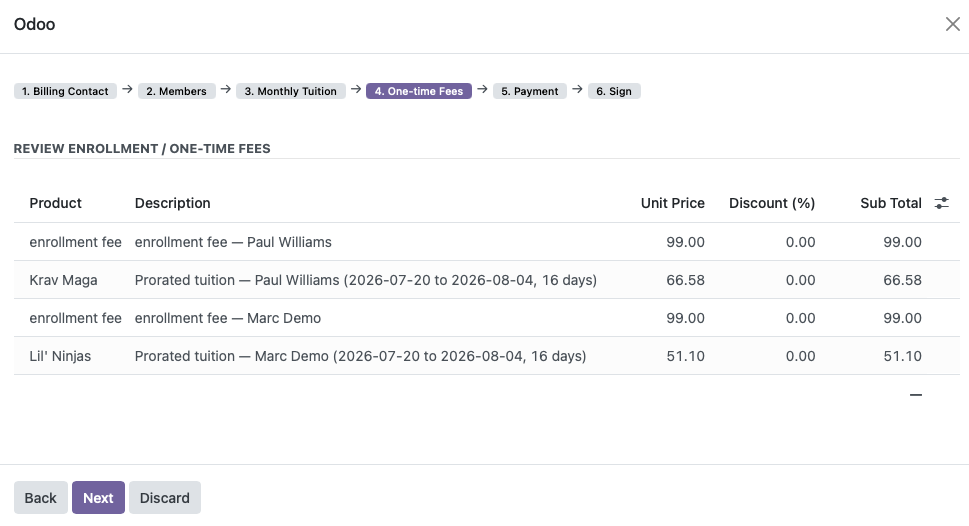
Step 4: One-time Fees (billing only)
Read-only table showing:
-
Enrollment/initiation fees per student
-
Prorated tuition (if applicable) from today until the first billing date
If Do Not Prorate was checked on the agreement, proration lines are skipped.
Click Next to continue.
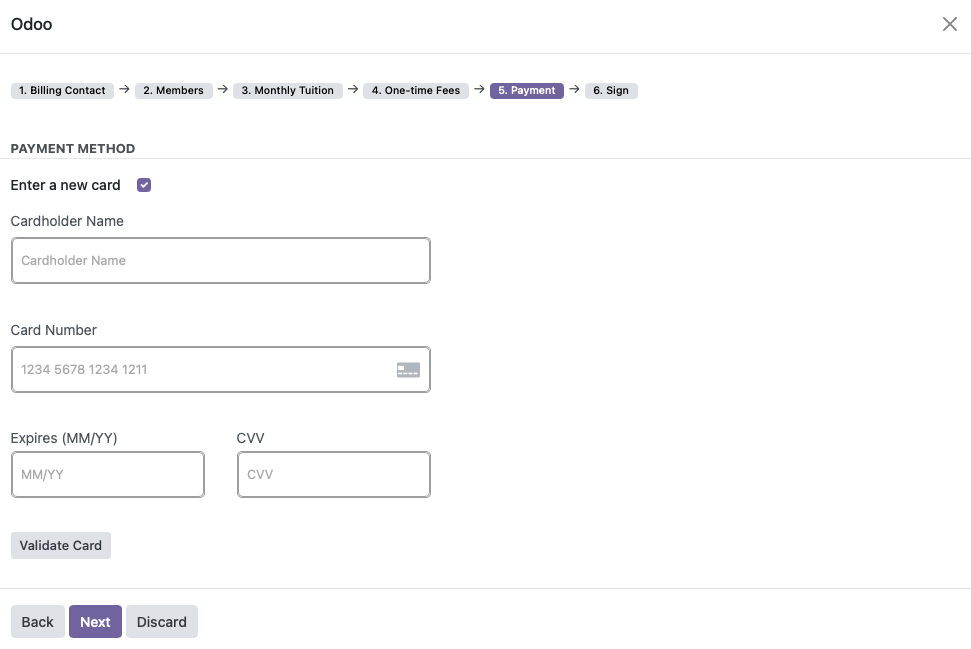
Step 5: Payment
Collect a card on file for the billing contact.
Using an existing saved card
If the billing contact already has a card on file, it is pre-selected. Click Next to use it.
Entering a new card
-
Check Enter a new card if replacing an existing card
-
Fill in the payment fields (card number, expiry, CVV)
-
Click Validate Card
-
Wait for validation to succeed, then click Next
The card is saved securely as a payment token for recurring charges.
See Card on File & Auto-Pay for details on what happens after signing.
Sign step
Final step - GET. THAT. SIGNATURE.:
|
Field |
Notes |
|---|---|
|
Template |
Agreement template for the PDF (defaults to your location's default) |
|
Signed By |
Name of the person signing (parent/guardian) |
|
Signed Date |
Date of signature (defaults to today) |
|
Activate Agreement After Signing |
Recommended - sets agreement and enrollments to Active |
|
Generate & Store PDF Copy |
Recommended - saves PDF on the agreement record |
What happens when you confirm
-
Contact updates from earlier steps are saved
-
Agreement PDF is generated and stored (if selected)
-
Document status changes to Signed
-
Billing is confirmed - enrollment fees and proration are invoiced immediately
-
Agreement and enrollments are activated (if selected)
-
If Payroc is enabled, due invoices are charged to the saved card
Click Confirm Signed to complete.
After signing
|
Result |
Where to see it |
|---|---|
|
Signed PDF |
Agreement → Document tab → Agreement PDF |
|
Active membership |
Agreement status = Active |
|
Invoices |
Agreement → Invoices smart button, or Accounting |
|
Billing contract |
Agreement → Contract smart button |
Once signed, billing prices are locked. To make changes, cancel or reset the agreement and start over.
Troubleshooting
|
Issue |
Solution |
|---|---|
|
Sign Agreement button missing |
Enable Billing on the agreement; install Contract Billing module |
|
Can't change tuition in wizard |
Edit the Billing tab before signing - wizard tables are read-only |
|
Payment step missing |
Payroc module must be installed and payment provider configured |
|
Validate Card fails |
Check card details; confirm Payroc provider is in Test or Enabled state |
|
Agreement won't activate |
Ensure at least one enrollment exists |
Related guides