

Getting Started
What this app does
Martial Arts Memberships helps your school track who is enrolled in which program, under which family agreement, and (when billing modules are installed) how tuition is invoiced and collected.
The app is built around three main concepts:
|
Concept |
What it is |
Example |
|---|---|---|
|
Program |
A class or curriculum you offer (Little Dragons, Adult Karate, etc.) |
"Youth Karate" linked to a monthly tuition product |
|
Agreement |
A family-level contract container |
The Smith family's 12-month membership starting March 1 |
|
Enrollment |
One student in one program under an agreement |
Emma Smith enrolled in Youth Karate |
A single agreement can hold multiple enrollments - for example, two siblings in different programs, all billed to the same parent.
Opening the app
After your administrator installs the app, you'll see a top-level menu:
Memberships
|
Menu item |
Purpose |
|---|---|
|
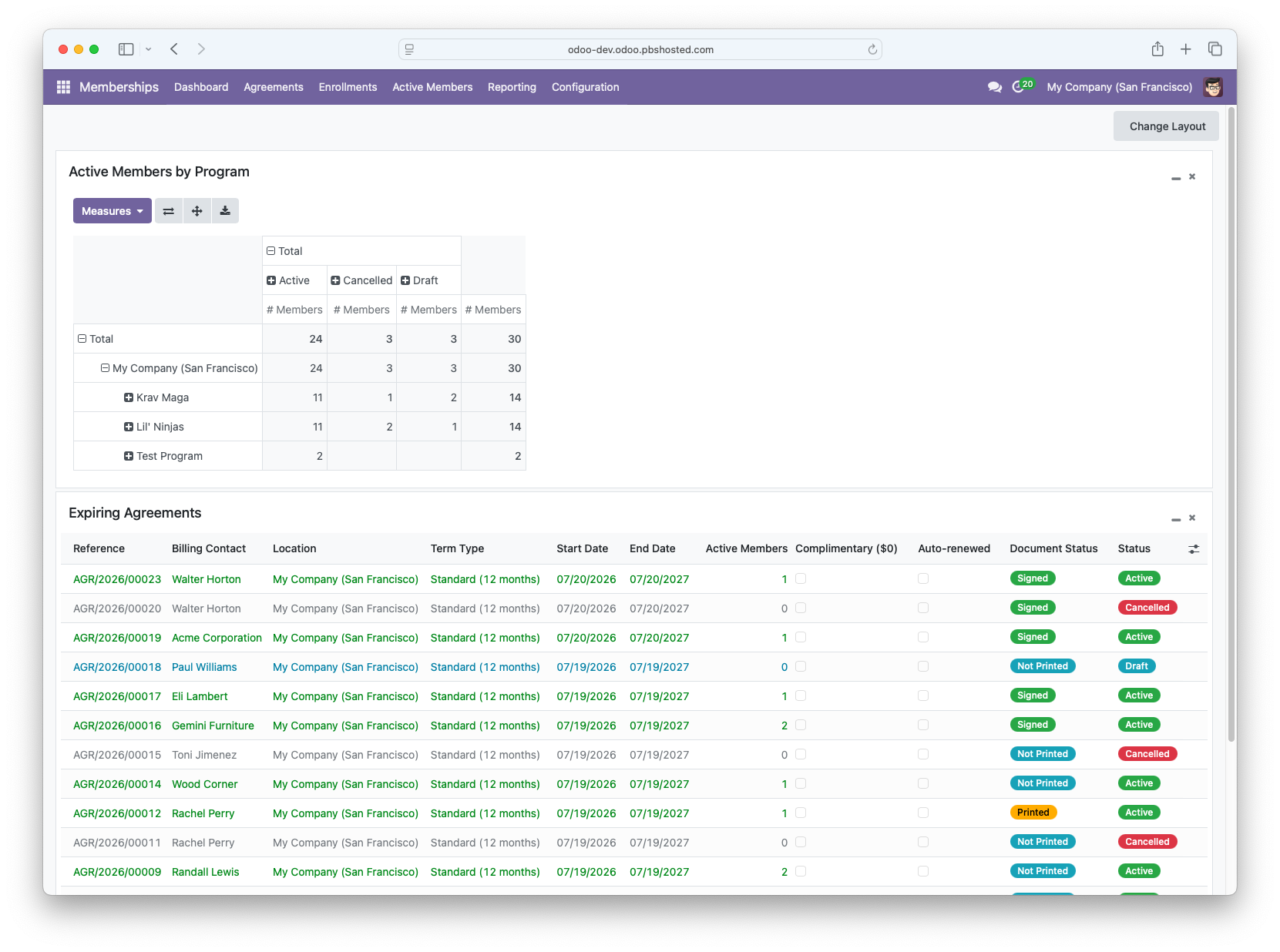
Dashboard |
At-a-glance active members, expiring agreements |
|
Agreements |
All family membership agreements |
|
Enrollments |
All student-program enrollments |
|
Active Members |
Enrollments with status Active |
|
Reporting |
Pivot reports, member contacts, expiring agreements |
|
Configuration |
Programs, term types, agreement templates, settings (Managers only) |
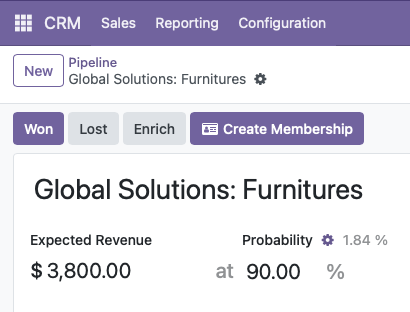
You can also create memberships directly from a CRM opportunity using the Create Membership button.
Typical enrollment workflow
For a new family signing up with billing enabled, the usual flow is:
-
Configure programs and settings (one-time setup - see Initial Setup & Configuration)
-
Create a draft agreement with students and programs
-
Enable billing and review tuition/fees on the Billing tab
-
Sign Agreement - walk the parent through the wet-ink wizard, collect payment if Integrated Payments is enabled
-
Agreement becomes Active; invoices are created according to your billing schedule
For complimentary (free) memberships, skip billing and signing - activate the agreement directly.
Agreement lifecycle
Draft → Active → Expired → Cancelled
|
Status |
Meaning |
|---|---|
|
Draft |
Being set up. Enrollments and pricing can still be edited. |
|
Active |
Live membership. Core fields are locked to prevent accidental changes. |
|
Expired |
Initial term ended; agreement may continue month-to-month for billing purposes. |
|
Cancelled |
Membership ended. Active enrollments are cancelled. |
Tip: Once an agreement is Active, you cannot add enrollments or change pricing without a manager resetting it to Draft or cancelling it first. Plan your enrollments before activating or signing.
Document status (when billing is enabled)
When billing is enabled on an agreement, you also track whether the printed agreement has been signed:
|
Document Status |
Meaning |
|---|---|
|
Not Printed |
Agreement PDF has not been generated yet |
|
Printed |
PDF was generated or printed |
|
Signed |
Wet-ink signature recorded |
The Sign Agreement and Print Agreement buttons appear only when billing is enabled on the agreement.
Term types
Every agreement has a Term Type that defines the initial commitment length:
|
Default term type |
Duration |
|---|---|
|
Standard (12 months) |
12 months |
|
6 months |
6 months |
|
Pay in Full (12 months) |
12 months (pricing discount handled manually) |
|
Month to Month |
1 month, auto-renewing |
When the initial term ends, an active agreement automatically becomes Auto-renewed (month-to-month). Billing continues until the agreement is cancelled.
Where to go next
|
If you need to… |
Read |
|---|---|
|
Set up programs and agreement templates |
|
|
Enroll a new family from CRM or manually |
|
|
Understand agreements and enrollments in detail |
|
|
Walk a parent through signing |