

This page explains how agreements and enrollments work together, and how to manage them day to day.
Agreements (family container)
An agreement represents the commercial relationship with a billing contact (usually a parent). It holds:
-
Term dates and type
-
Billing settings (when Contract Billing is installed)
-
Agreement PDF and signature status
-
One or more enrollments (students in programs)
Open agreements from Memberships → Agreements.
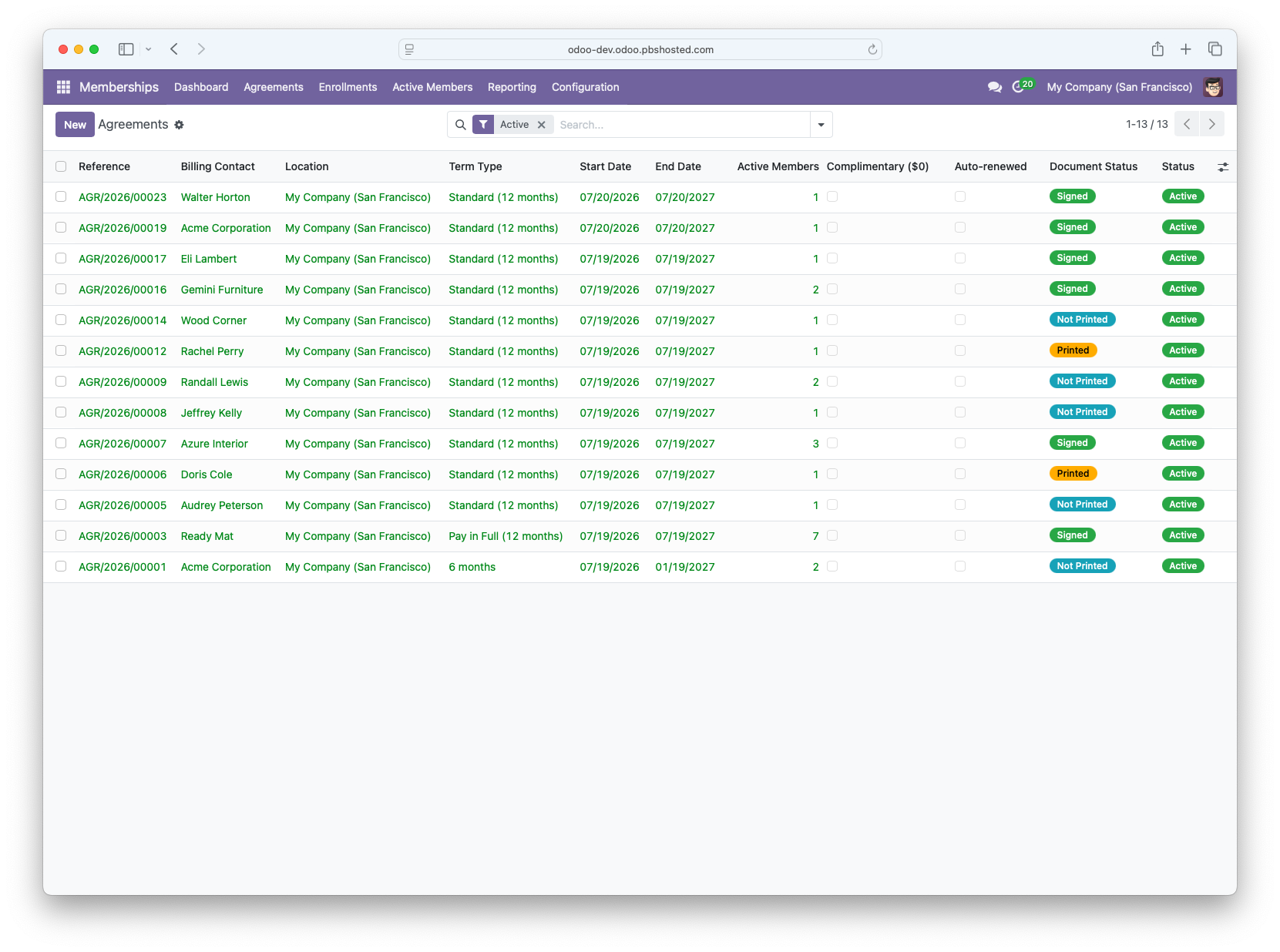
Agreement form overview
|
Area |
Contents |
|---|---|
|
Header buttons |
Activate, Cancel, Print Agreement, Sign Agreement |
|
Enrollments tab |
Students and programs on this agreement |
|
Document tab |
Template, signature info, stored PDF (visible when billing enabled) |
|
Billing tab |
Contract lines, billing day, proration (Contract Billing module) |
|
Notes tab |
Internal staff notes (not printed on agreement) |
|
Chatter |
Messages, activities, and history |
Key fields
|
Field |
Description |
|---|---|
|
Billing Contact |
Who is responsible for payment |
|
Term Type |
Initial commitment (12-month, 6-month, etc.) |
|
Start / End Date |
Initial term period |
|
Auto-renewed |
Shows when the agreement has moved to month-to-month |
|
Complimentary ($0) |
Free membership - no billing contract |
|
Enable Billing |
Turns on contract billing and unlocks Print/Sign buttons |
Status actions
|
Button |
When available |
Effect |
|---|---|---|
|
Activate |
Draft |
Sets agreement and draft enrollments to Active |
|
Cancel |
Draft or Active |
Cancels agreement and all active/draft enrollments |
|
Reset to Draft |
Active, Expired, or Cancelled |
Returns to Draft (Managers only) |
|
Print Agreement |
Billing enabled, not cancelled |
Opens PDF report |
|
Sign Agreement |
Billing enabled, not yet signed |
Opens wet-ink signing wizard |
Active agreement lock: When an agreement is Active, most fields cannot be edited. To change enrollments or pricing, a Manager must Reset to Draft or Cancel and create a new agreement.
Enrollments (student + program)
An enrollment links one student to one program under an agreement.
Open enrollments from Memberships → Enrollments or Memberships → Active Members.
Enrollment fields
|
Field |
Description |
|---|---|
|
Agreement |
Parent agreement |
|
Student |
Individual contact |
|
Program |
Class/curriculum |
|
Enrollment Date |
When the student joined this program |
|
Status |
Draft, Active, Inactive, or Cancelled |
|
Monthly Tuition |
Agreed recurring price |
|
Enrollment Fee |
One-time initiation fee |
|
Discount (%) |
Percentage off monthly tuition |
|
External Member ID |
Reserved for future rank-system integration |
Enrollment statuses
|
Status |
Meaning |
|---|---|
|
Draft |
Not yet live |
|
Active |
Currently enrolled |
|
Inactive |
Paused (e.g. hold/freeze) |
|
Cancelled |
Ended |
Changing enrollments on an active agreement
You cannot add, remove, or edit enrollments on an Active agreement. Options:
-
Reset to Draft (Manager) - make changes, then re-activate or re-sign
-
Cancel the agreement and create a new one
-
Set individual enrollments to Inactive or Cancelled from the Enrollments list (if your process allows)
Family agreements
One agreement commonly covers multiple students:
Smith Family Agreement
├── Emma Smith  →  Youth Karate      ($99/mo)
├── Jake Smith  →  Little Dragons    ($79/mo)
└── Billing Contact: John Smith
All enrollments share the same term dates and billing contact. Each enrollment can have different programs, tuition, and discounts.
Complimentary memberships
Check Complimentary ($0) on the agreement when tracking membership without charging:
-
No billing contract is created
-
Print/Sign buttons remain tied to billing - use Activate directly
-
Useful for staff memberships, scholarships, or promotional free periods
Month-to-month after initial term
When the End Date passes on an Active agreement:
-
The agreement shows Auto-renewed = Yes
-
Status stays Active
-
Billing continues on the billing day until cancelled
Use Reporting → Expiring Agreements to find agreements approaching their end date and reach out about renewals.
Contacts and photos
During the Sign Agreement wizard, you can capture or update:
-
Billing contact address, phone, and email
-
Each student's contact info
-
Student photo via webcam (requires Partner Photo Capture module)
Photos and contact updates are saved to the contact record in Odoo.
Related guides
-
Creating a Membership Agreements: CRM vs Manual Options - how to create new agreements
-
Signing the Agreement - wet-ink signing walkthrough
-
Billing & Invoices - recurring tuition and fees