Requires: MA Memberships - Payroc module, MA Memberships - Contract Billing, and the Payment Provider: Payroc app (configured by your administrator).
This module lets you save a Billing Contacts credit card during the Sign Agreement wizard and automatically charge invoices as they are created.
Overview
|
When |
What happens |
|---|---|
|
Sign Agreement → Payment step |
Card is securely vaulted for the billing contact |
|
Confirm Signed |
Card token is linked to the billing contract; due invoices are posted and charged |
|
Each billing day |
Monthly tuition invoice is created, posted, and charged to the saved card |
|
Charge fails |
Failure is logged on the contract; invoice stays open for manual follow-up |
Payment step in Sign Agreement
During signing, after the tuition and fee review steps, the Payment step appears when:
-
Payroc module is installed
-
Payroc payment provider is configured (Test or Enabled)
-
Billing is enabled on the agreement
Using an existing card
If the billing contact already has a saved Payroc card:
-
The existing token is pre-selected
-
Click Next to continue with that card
Entering a new card
-
Check Enter a new card to replace an existing token
-
Complete the secure Payroc payment fields (card number, expiration, security code)
-
Click Validate Card and wait for success
-
Click Next - the card is vaulted for recurring use
Security: Card numbers never touch your Odoo server. Payroc Hosted Fields handle entry and tokenization in a PCI-compliant iframe.
What happens at signing
When you click Confirm Signed on the final step:
-
Payment token is saved on the billing contract
-
Billing is confirmed (contract becomes active)
-
One-time invoices (enrollment fees, proration) are created and posted
-
Posted invoices are charged immediately to the saved card
-
Agreement is activated
Monthly auto-pay
On each billing day, the contract scheduler:
-
Creates the monthly tuition invoice
-
Posts it to accounting
-
Attempts to charge the saved payment token
-
Reconciles the payment against the invoice on success
No staff action is required for successful charges.
Failed payments
If a charge fails:
-
A message is posted on the billing contract with failure details
-
The invoice remains open/unpaid in accounting
-
Staff should contact the member to update their card or arrange payment
Manage or update payment methods
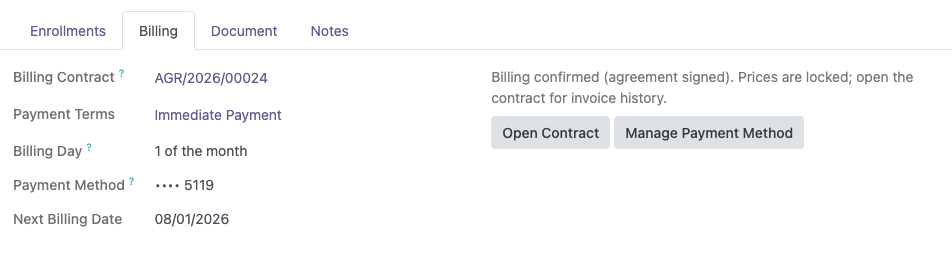
When you need to update the billing contract’s payment method, click the Manage Payment Method on the agreement’s billing tab.
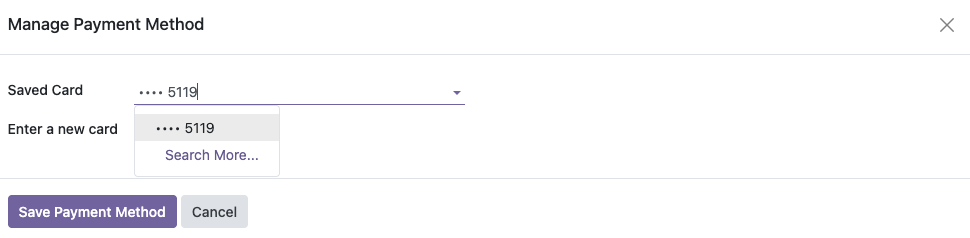
From here, you can select another saved payment method (payment token), or add a new card.
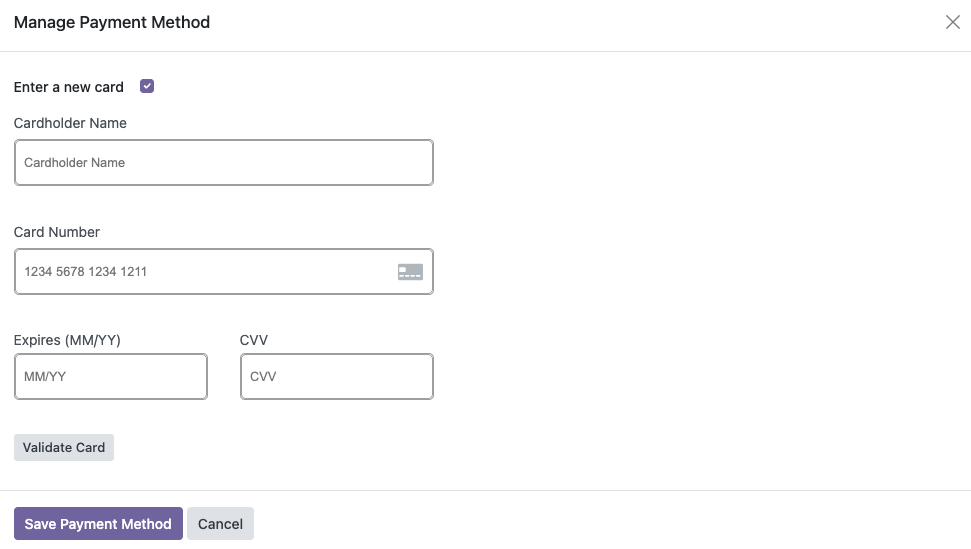
After saving the updated payment method, it will be used for future recurring invoices.
Viewing payment history
|
Location |
What you'll find |
|---|---|
|
Agreement → Invoices button |
All invoices with payment status |
|
Billing contract form |
Payment token, charge log messages |
|
Accounting → Customer Invoices |
Standard invoice and payment records |
Scenarios
|
Scenario |
Behavior |
|---|---|
|
Parent pays enrollment fee by check at signing |
Still collect card on Payment step for future auto-pay; first invoices charge the card - coordinate with your billing process |
|
Card declined at signing |
Invoice stays open; resolve payment before completing enrollment |
|
Monthly charge declined |
Contract logs failure; follow up with member; invoice remains open |
|
Parent wants to change card mid-term |
Update the saved payment method from Agreement → Billing tab |
Related guides
-
Signing the Agreement - Payment step walkthrough
-
Billing & Invoices - when invoices are created