

There are two ways to create a new membership agreement: from a CRM opportunity (recommended for new leads) or manually from the Agreements menu.
Option A: From a CRM opportunity
Use this when a prospect has become ready to enroll and you already have a lead/opportunity in CRM.
Prerequisites
-
The opportunity must have a Customer (contact) linked
-
Student contacts should exist in Odoo (or be created before enrolling)
Steps
-
Open the CRM opportunity
-
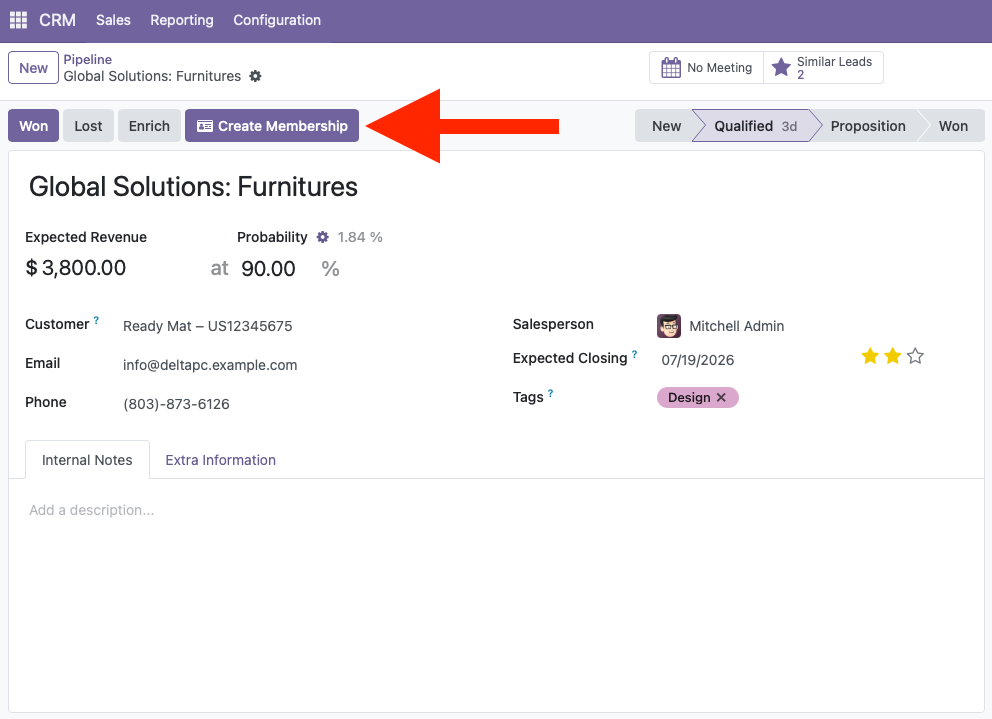
Click Create Draft Membership in the header
-
Complete the wizard:
|
Field |
Notes |
|---|---|
|
Billing Contact |
Usually the parent or account holder. Pre-filled from the opportunity customer. |
|
Location |
Your school/company |
|
Term Type |
Initial commitment length (default: Standard 12 months) |
|
Start Date |
When membership begins |
|
End Date |
Auto-calculated from term type; adjust if needed |
|
Students & Programs |
Add one row per student. Pick the student contact and their program. Tuition and enrollment fee default from the program. |
-
Click Create Draft Membership
You'll be taken to the new agreement form where you can review enrollments, enable billing, and proceed to signing.
SmartWaiver integration
If your CRM lead is linked to a SmartWaiver record with a primary contact, the billing contact is pre-filled from the waiver automatically.
Option B: Manual agreement
Use this for walk-ins, renewals, or situations where no CRM lead exists.
Steps
-
Go to Memberships → Agreements
-
Click New
-
Fill in the agreement header:
|
Field |
Notes |
|---|---|
|
Billing Contact |
Parent or payer |
|
Location |
Your school |
|
Term Type |
Commitment length |
|
Start / End Date |
Membership period |
-
On the Enrollments tab, add rows:
|
Column |
Notes |
|---|---|
|
Student |
Individual contact (not a company) |
|
Program |
Class/curriculum |
|
Enrollment Date |
Usually the start date |
-
Save the agreement
Setting tuition and discounts
When you select a program on an enrollment line, Monthly Tuition and Enrollment Fee default from the program catalog. You can override them per enrollment for:
-
Family discounts
-
Promotional pricing
-
Pay-in-full arrangements
Use the Discount (%) field to apply a percentage off monthly tuition only (enrollment fees are not discounted by this field).
Validation rules
The system prevents common mistakes:
|
Rule |
What happens |
|---|---|
|
Duplicate active enrollment |
A student cannot have two active enrollments in the same program at the same location |
|
Under 2 years old |
The CRM wizard warns if a student's birthdate suggests they are under 2 |
|
Empty enrollments |
At least one student with a program is required |
After creation: what to do next
|
Situation |
Next step |
|---|---|
|
Billing enabled, not complimentary |
Review the Billing tab, then run Sign Agreement |
|
Complimentary or billing disabled |
Click Activate when ready |
|
Need to make changes |
Keep agreement in Draft until everything is correct |
Note: Once an agreement is Active, enrollments and pricing are locked. Get everything right in Draft first, or ask a Manager to Reset to Draft.
Quick reference: CRM vs manual
|
|
CRM wizard |
Manual agreement |
|---|---|---|
|
Best for |
New leads converting to members |
Walk-ins, renewals, no lead |
|
Pre-fills students |
Yes (from lead contacts) |
No |
|
Links to opportunity |
Yes |
Optional |
|
Creates agreement + enrollments |
Yes |
You add enrollments manually |
See also: Agreements & Enrollments · Sign Agreement