

Your register runs on a commercial Android touchscreen POS terminal. We supply and support the models below. They all run the same POS app and work the same way day to day - see Getting Started for using the register.
[ADD PHOTO] Group shot of the supported terminals (Elo Z10, Elo Z30, SUNMI D3 Pro) side by side, or your preferred hero image for this page.
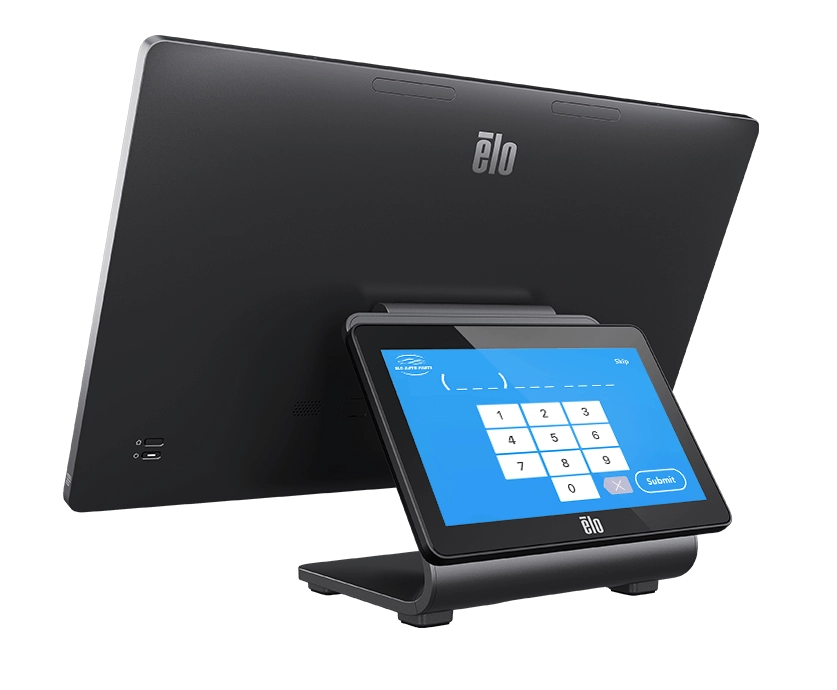
Elo EloPOS Z10
A 15.6" all-in-one Android POS terminal with a compact stand.
-
Display: 15.6" Full HD (1920 × 1080) touchscreen
-
Operating system: Android
-
Connectivity: Gigabit Ethernet (wired) and Wi-Fi; USB ports on the I/O hub
-
Cash drawer: opened through the receipt printer
-
Optional: a customer-facing display can be mounted to the back of the stand
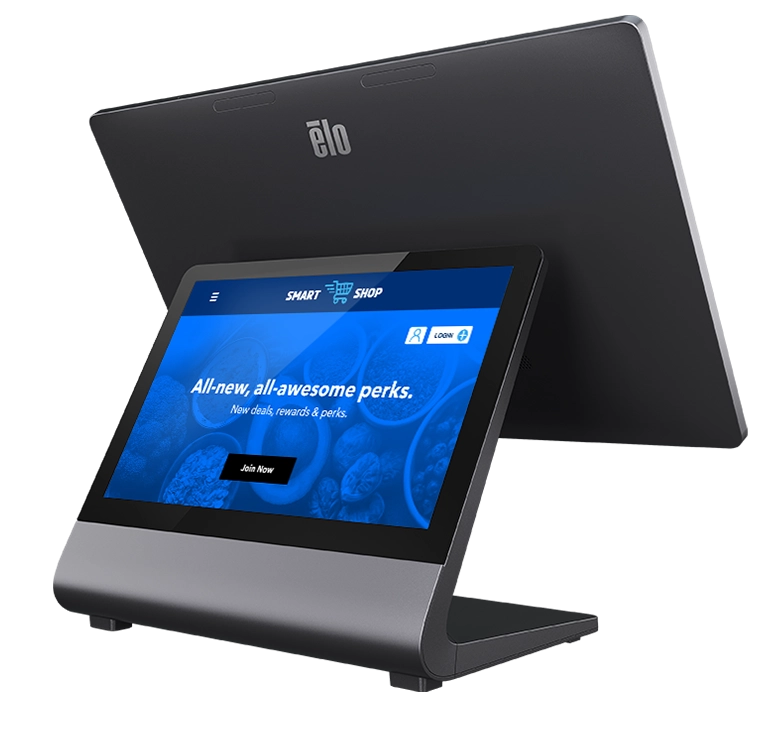
Elo EloPOS Z30
A 15.6" all-in-one Android POS terminal with an integrated connectivity hub in the stand.
-
Display: 15.6" Full HD (1920 × 1080) touchscreen
-
Operating system: Android
-
Connectivity: Gigabit Ethernet (wired) and Wi-Fi; USB ports and a built-in cash-drawer port in the stand
-
Optional: a built-in interactive customer-facing display
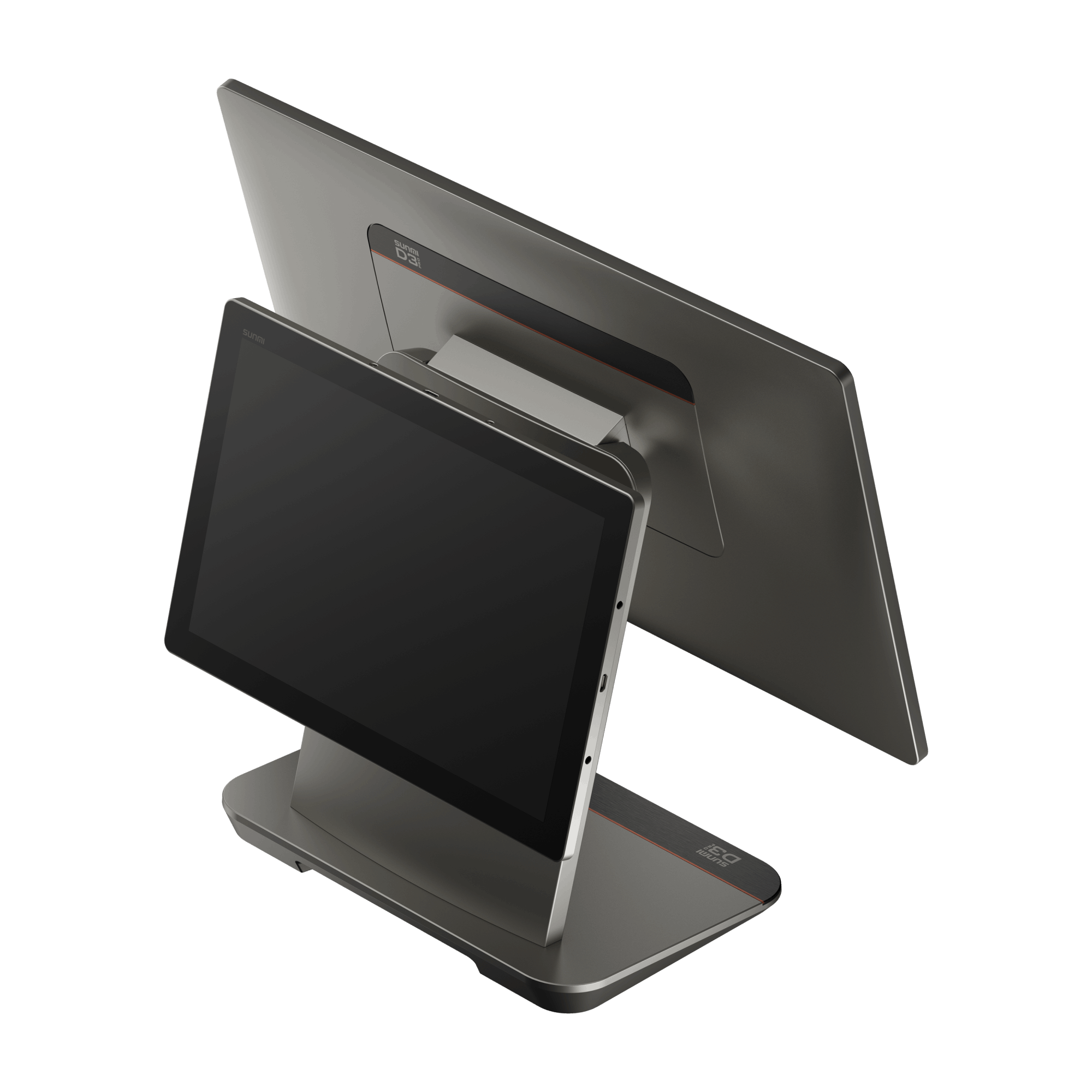
SUNMI D3 Pro
A 15.6" all-in-one Android countertop terminal with a slim aluminum stand and tidy cable routing.
-
Display: 15.6" Full HD (1920 × 1080) touchscreen
-
Operating system: Android
-
Connectivity: Gigabit Ethernet (wired) and Wi-Fi; USB and cash-drawer ports on the base
-
Optional: a 10.1" customer-facing display, fingerprint unlock, and NFC
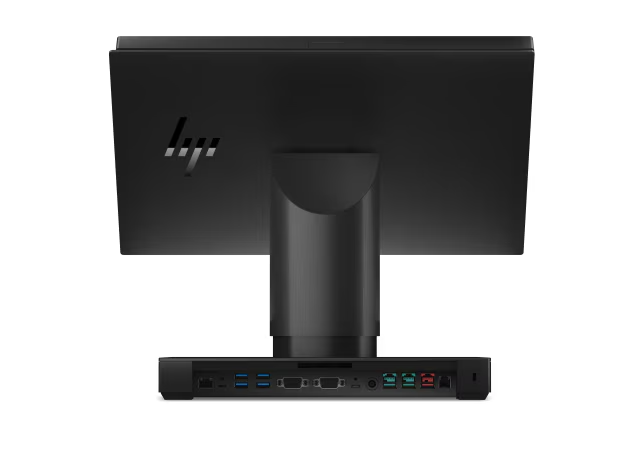
HP Engage One Essential
A 14" all-in-one Android or Windows POS terminal available with a range of stands and integrated peripherals.
-
Display: 14" Full HD (1920 × 1080) touchscreen
-
Operating system: Android or Windows
-
Connectivity: Gigabit Ethernet (wired), Wi-Fi, and Bluetooth; USB ports on the stand or VESA hub
-
Optional: customer-facing display, integrated barcode scanner, magnetic stripe reader, and fingerprint reader
Powering on and off
-
Turn on: press the power button; the terminal boots straight into your register.
-
Restart or shut down (recommended): use Reboot or Shutdown in the Manager Tools menu (hold the upper-left corner of the screen for five seconds). This lets the terminal shut down cleanly.
-
Force off (if frozen): press and hold the power button until the terminal powers down, then press it again to start.
[ADD PHOTO] Close-up showing the power button location on each terminal (helpful for staff).
Basic troubleshooting
|
Issue |
What to try |
|---|---|
|
Screen is black / won't turn on |
Confirm the power cable is connected and the outlet has power; press the power button to start it. |
|
Touchscreen not responding |
Force off with the power button and restart. |
|
Register won't load |
Check the terminal's internet connection; see Troubleshooting. |
|
Screen shows a bouncing logo |
That's the screensaver - touch anywhere to return to the register. |
|
Terminal is slow or stuck |
Use Reboot from the Manager Tools menu. |
Care
-
Keep vents and ports clear and the terminal in a well-ventilated spot.
-
Clean the touchscreen with a soft, slightly damp cloth - avoid harsh cleaners.
-
Don't unplug the terminal mid-sale; use Shutdown first when moving or powering down.
If a terminal won't start after a reboot and power check, Create a Support Ticket or contact us.