

Receipt Printer - Epson TM-M30 Series
The Epson TM-M30 Series is a compact thermal receipt printer. It prints your receipts and also triggers the cash drawer to open.
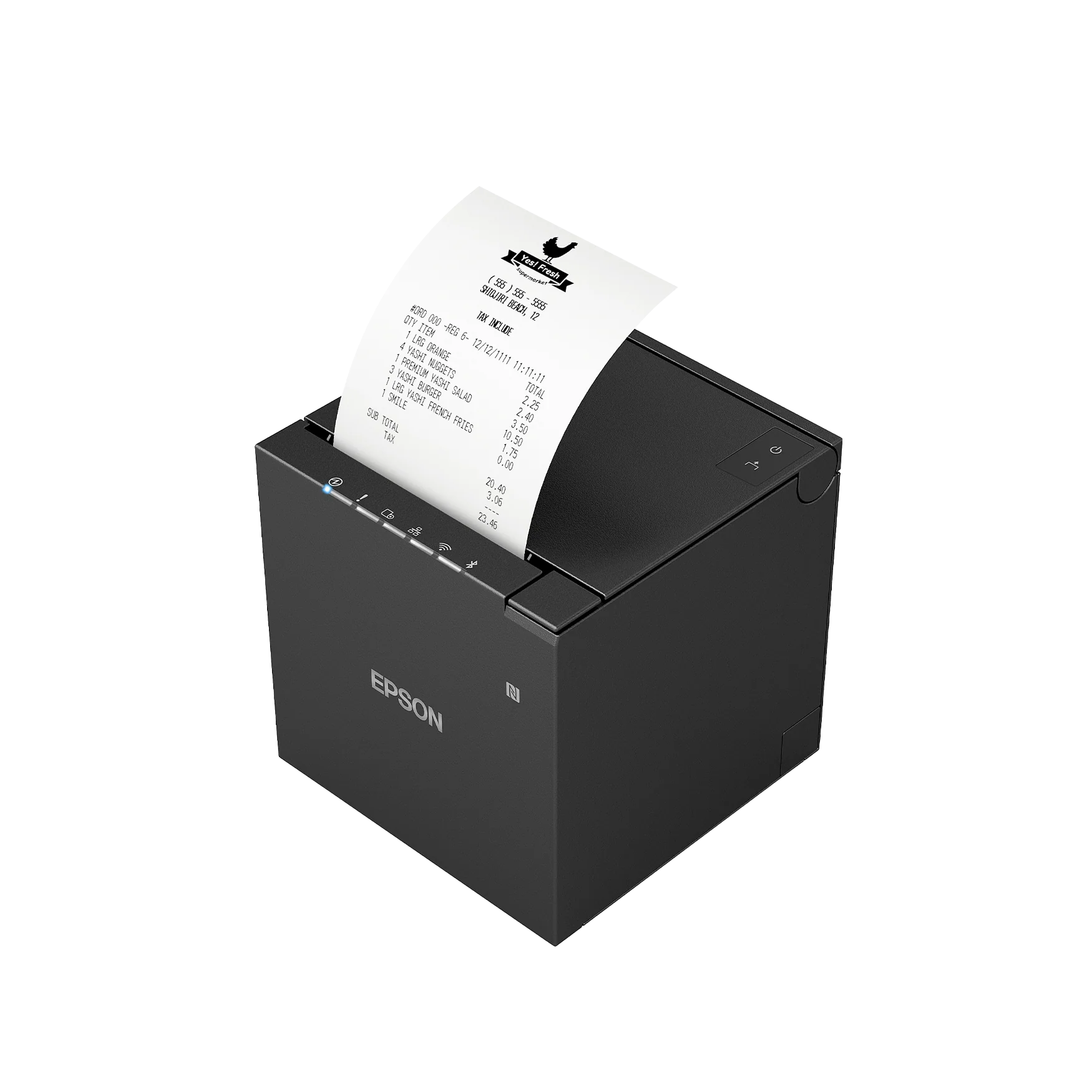
Basics
-
Prints on thermal receipt paper (no ink or ribbon needed).
-
Connects to your network so the terminal can send it receipts.
-
Has a port on the back for the cash drawer cable.
Loading paper
-
Push the cover-release lever and open the top cover.
-
Drop in a new roll so the paper feeds from the bottom of the roll and out the front.
-
Pull a little paper out, close the cover firmly, and tear off the excess.
[ADD PHOTO] Photos of the paper-loading steps: cover open, roll seated correctly, cover closed.
Status lights
-
Power light on: printer has power.
-
Error light on or blinking: usually means the cover is open or paper is out - check both first.
[ADD PHOTO] Close-up of the printer's status lights, labeled, so staff can identify Power vs. Error.
Basic troubleshooting
|
Issue |
What to try |
|---|---|
|
Nothing prints |
Run Test Print from the Manager Tools menu. Confirm the printer is powered on. |
|
Error light is on |
Make sure paper is loaded and the cover is fully closed. |
|
Receipts print blank |
The paper may be loaded upside down - thermal paper only prints on one side. Reload with the correct side facing the print head. |
|
Prints but the register says it can't reach the printer |
Check the printer's network cable/connection and that it's powered on. |
|
Cash drawer won't open |
The drawer is triggered by the printer - first confirm the printer works with a Test Print, then check the drawer cable (see Cash Drawer). |
Care
-
Keep spare thermal rolls on hand.
-
Store paper away from heat and direct sunlight (thermal paper darkens with heat).
-
Wipe the exterior with a dry or lightly damp cloth.
If the printer still won't print after checking paper, cover, power, and network, use Create a Support Ticket or contact us.