

Day-to-day card sales and refunds in Point of Sale using Payroc.
Terminal sale (card present)
-
Open a POS session and ring up the order.
-
Tap Payment.
-
Select the Payroc (terminal) payment method.
-
Confirm or edit the amount if splitting tenders (see below).
-
Tap Send so the amount goes to the device.
-
Have the customer present the card on the terminal.
-
Wait for approval. The receipt can show card brand, last digits, reference, and signature when available.
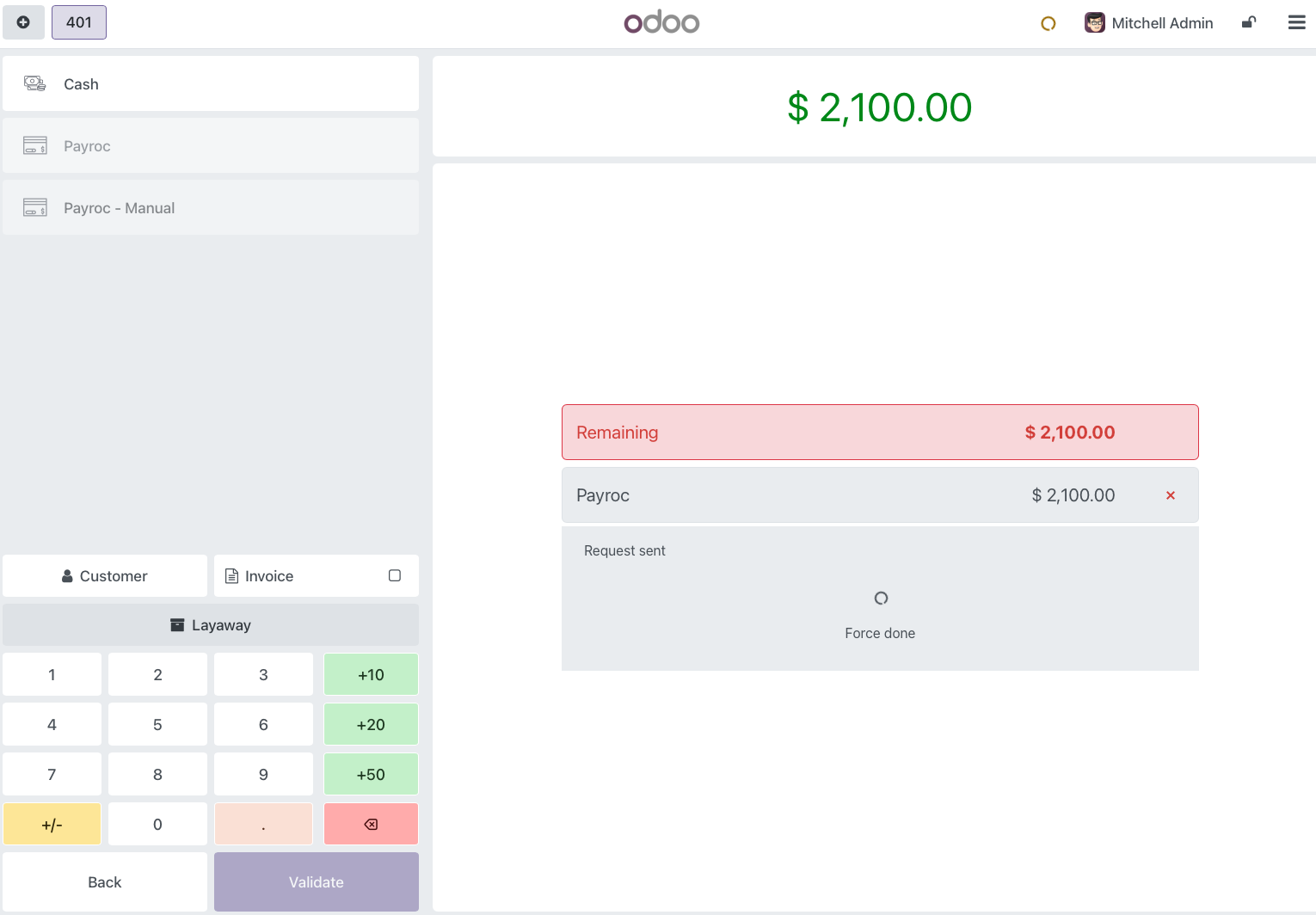
If the terminal does not wake up, cancel in POS, confirm the serial and Processing Terminal ID, and try again.
Manual Entry sale (keyed card)
-
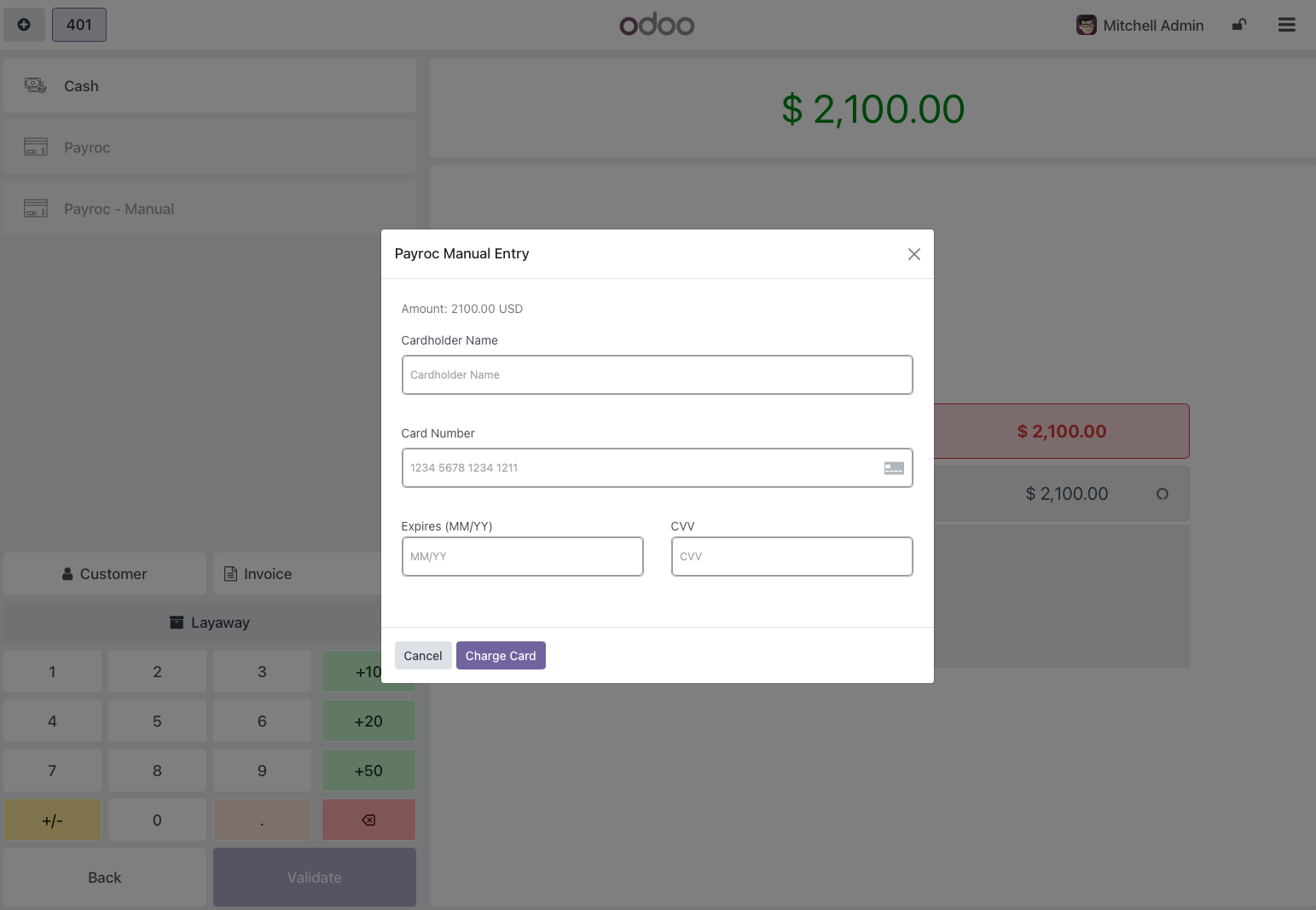
On Payment, select Card - Manual .
-
Tap Send.
-
Enter card details in the dialog (cardholder name, number, expiry, CVV).
-
Submit. On approval, continue to validate / receipt as usual.
Manual Entry is labeled on the receipt (for example as Manual Entry) so it is clear the card was keyed.
Split tenders
You can pay part of the order with Payroc and the rest with cash, another card, or another method.
-
On Payment, select Payroc.
-
Change the amount on the payment line to the portion to charge on the card.
-
Tap Send and complete that card payment.
-
Add another payment method for the remainder and finish the order.
Each Payroc charge needs its own Send so Payroc receives a unique order reference.
Screenshot: Payment screen with a partial Payroc amount and a second tender.
Refunds
Refunds must start from the original paid order so Odoo can find the Payroc payment reference.
-
Open Tickets (orders).
-
Find the original Payroc sale.
-
Choose Refund and select the lines / quantities to return.
-
On Payment, select the same Payroc method (terminal or Manual Entry).
-
Tap Send / confirm. Odoo looks up the original Payroc reference and submits the refund.
Screenshot: Ticket screen → Refund on a paid Payroc order.
Important
-
Do not invent a standalone negative order without linking to the original ticket. Payroc needs the original payment reference.
-
After settlement, Payroc processes a refund; on an open batch the gateway may reverse instead. Either way, approval means the money is returned on the card side.
You can also refund from the backend order form using Refund Card (Payroc) when that button is available - still requires the original transaction_id / reference on the payment.
What cashiers see on the receipt
Typical Payroc receipt details include:
-
Card brand and type
-
Masked card number
-
Entry method (chip, swipe, Manual Entry, etc.)
-
Reference / approval info
-
Signature image when the terminal captured one
Screenshot: Printed or on-screen receipt with Payroc card block.